
Winhance
Clear out the parts of Windows you never asked for, tighten up how the system behaves, and shape the desktop around your own workflow - all from one window, on Windows 10 or Windows 11.
irm "https://get.winhance.org" | iex
The businesses helping keep Winhance free for everyone.

Sponsor recognition is opt-in and never shows amounts. A listing is not an endorsement.
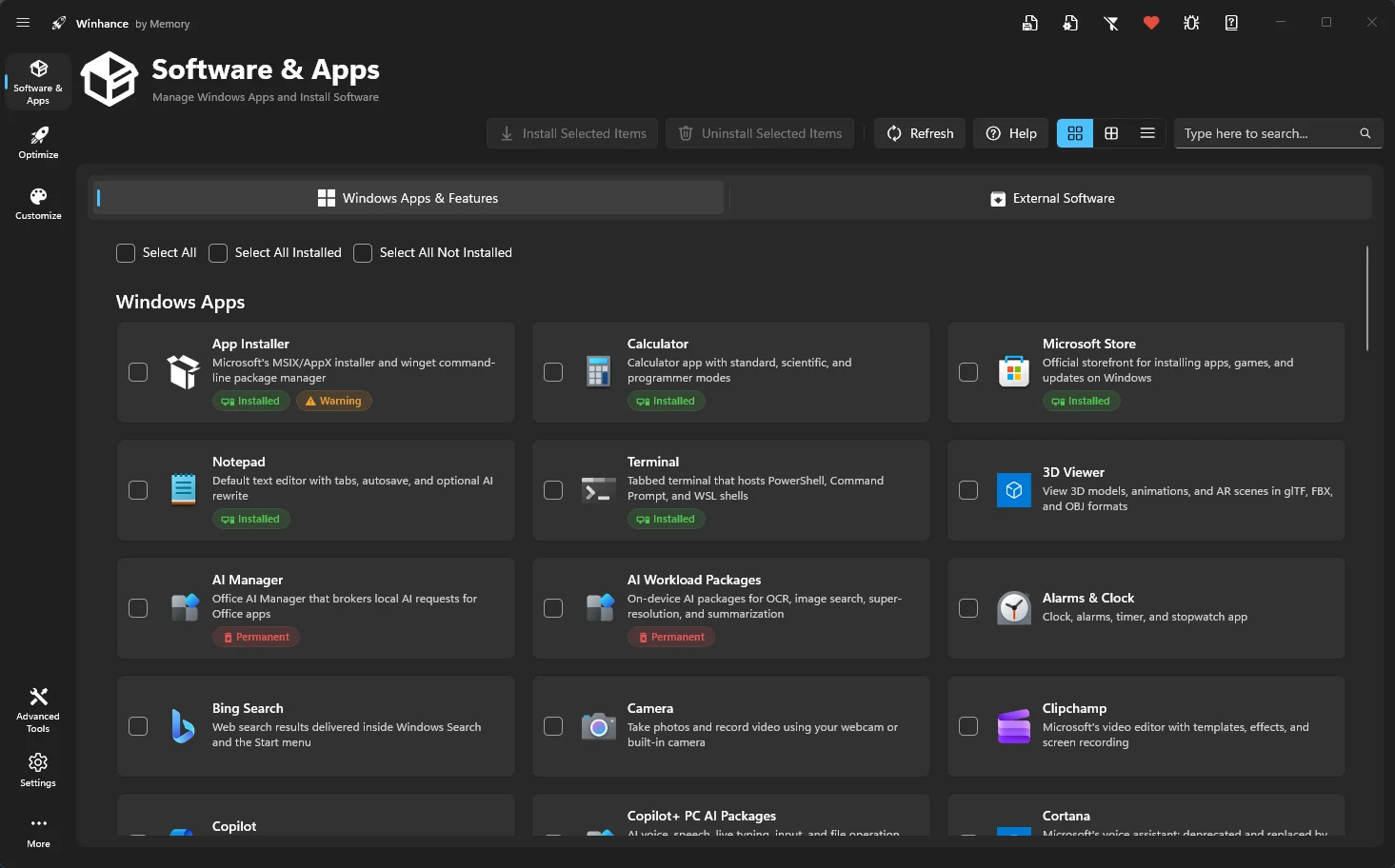
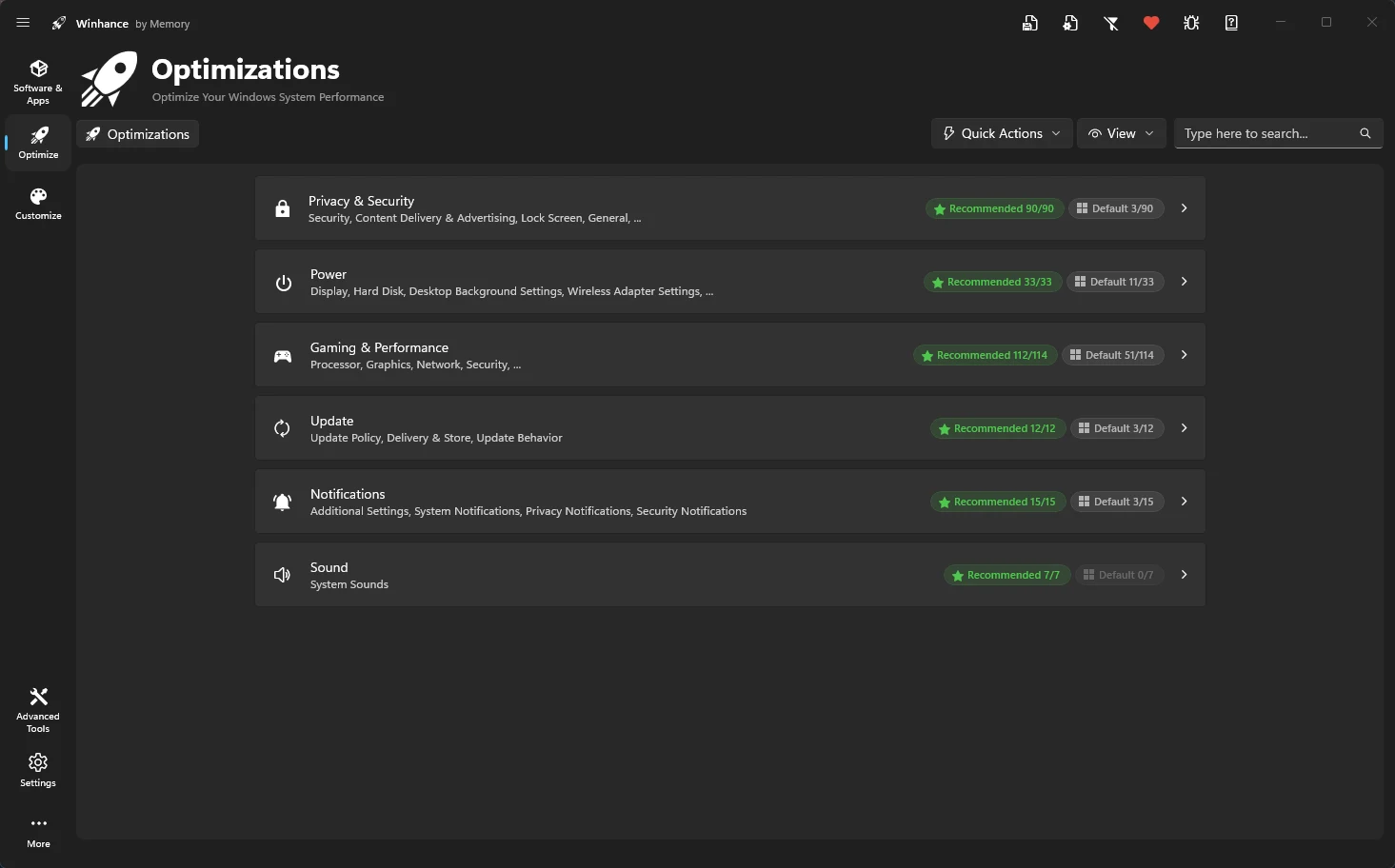
Work through grouped Windows settings that shape everyday performance and privacy:
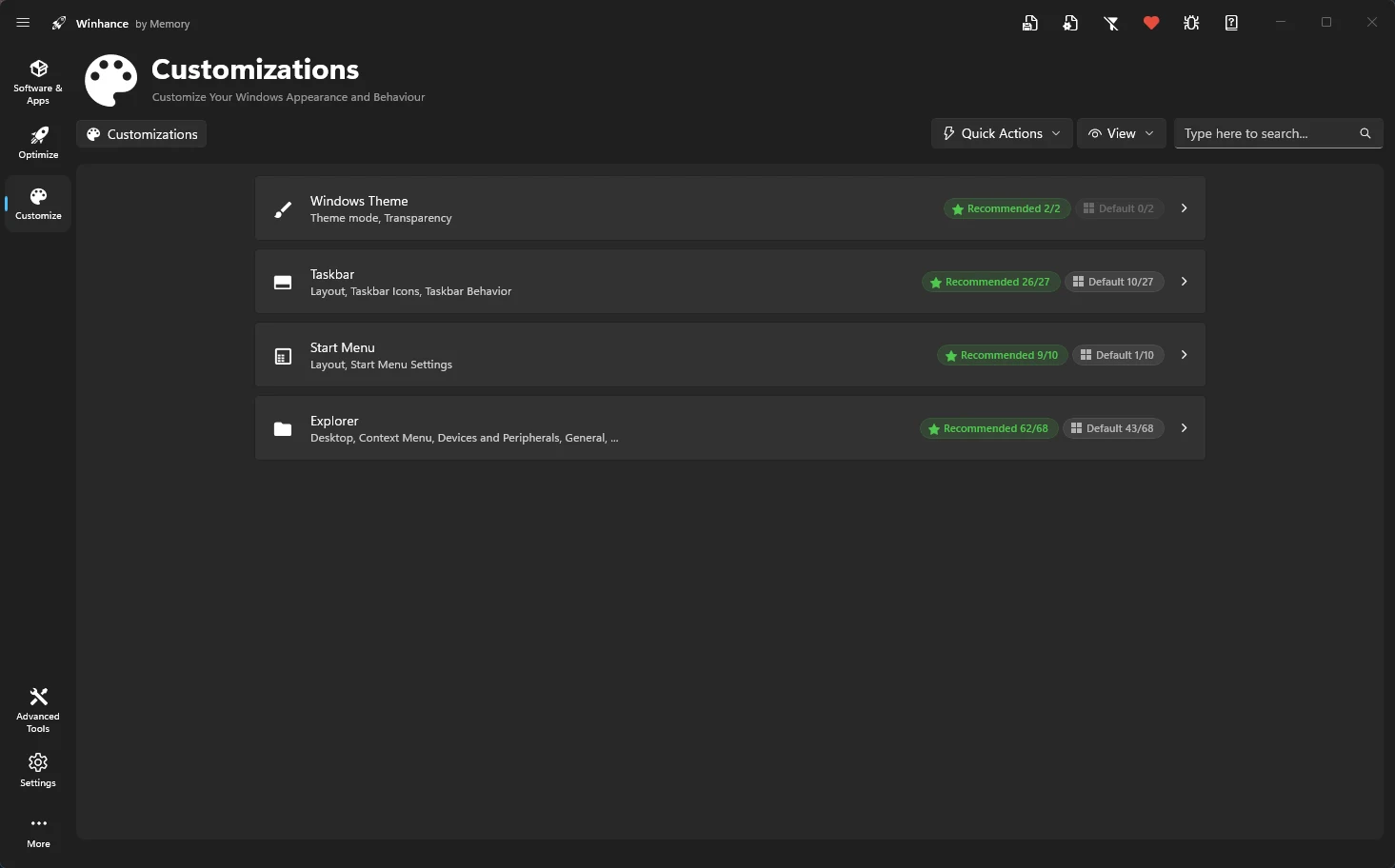
Adjust the parts of the Windows interface you interact with the most:
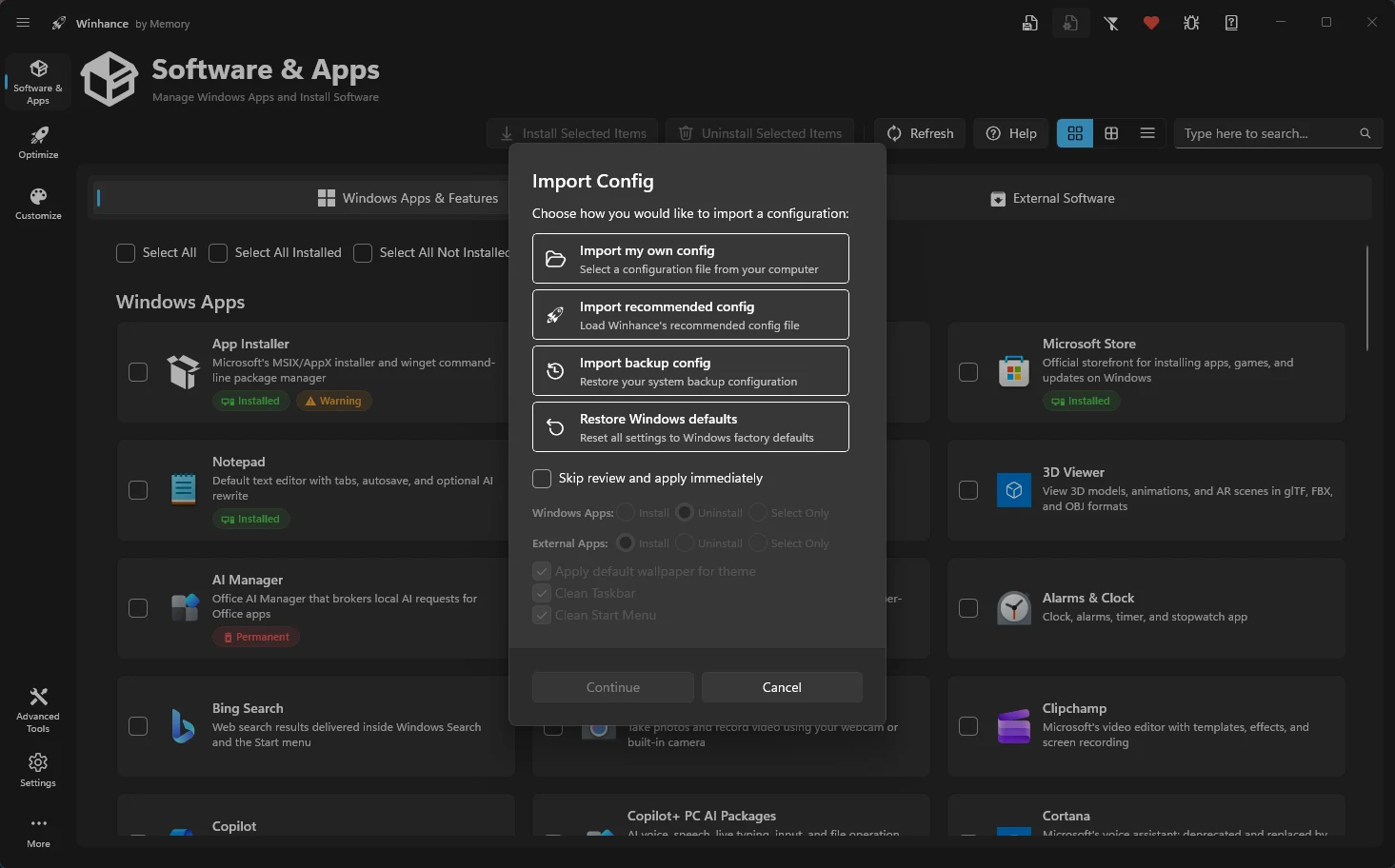
Keep your preferred setup in a file and reapply it whenever you rebuild a PC:
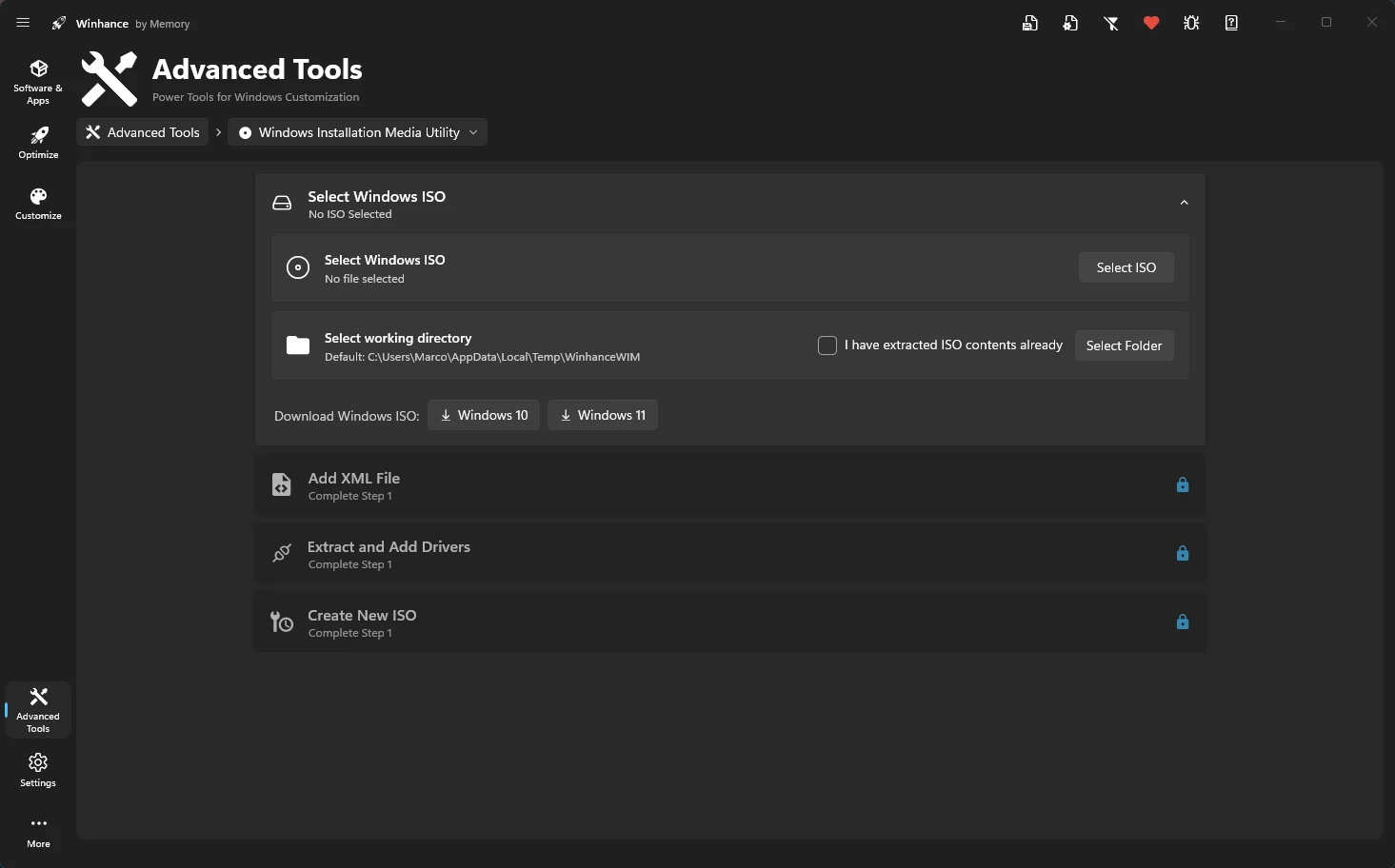
Deployment tools for people who configure Windows before it is even installed:
Setup steps, plain-language explanations of every setting, and deeper guides once you want to automate a Windows install.
Install Winhance with a single PowerShell command or the standard installer, then check the system requirements and run your first pass.
Read Guide →A per-setting reference for the Optimize and Customize sections, so you know what a toggle changes in Windows before you use it.
Read Guide →Build custom installation media with WIMUtil, generate an autounattend.xml, and move saved configurations between machines.
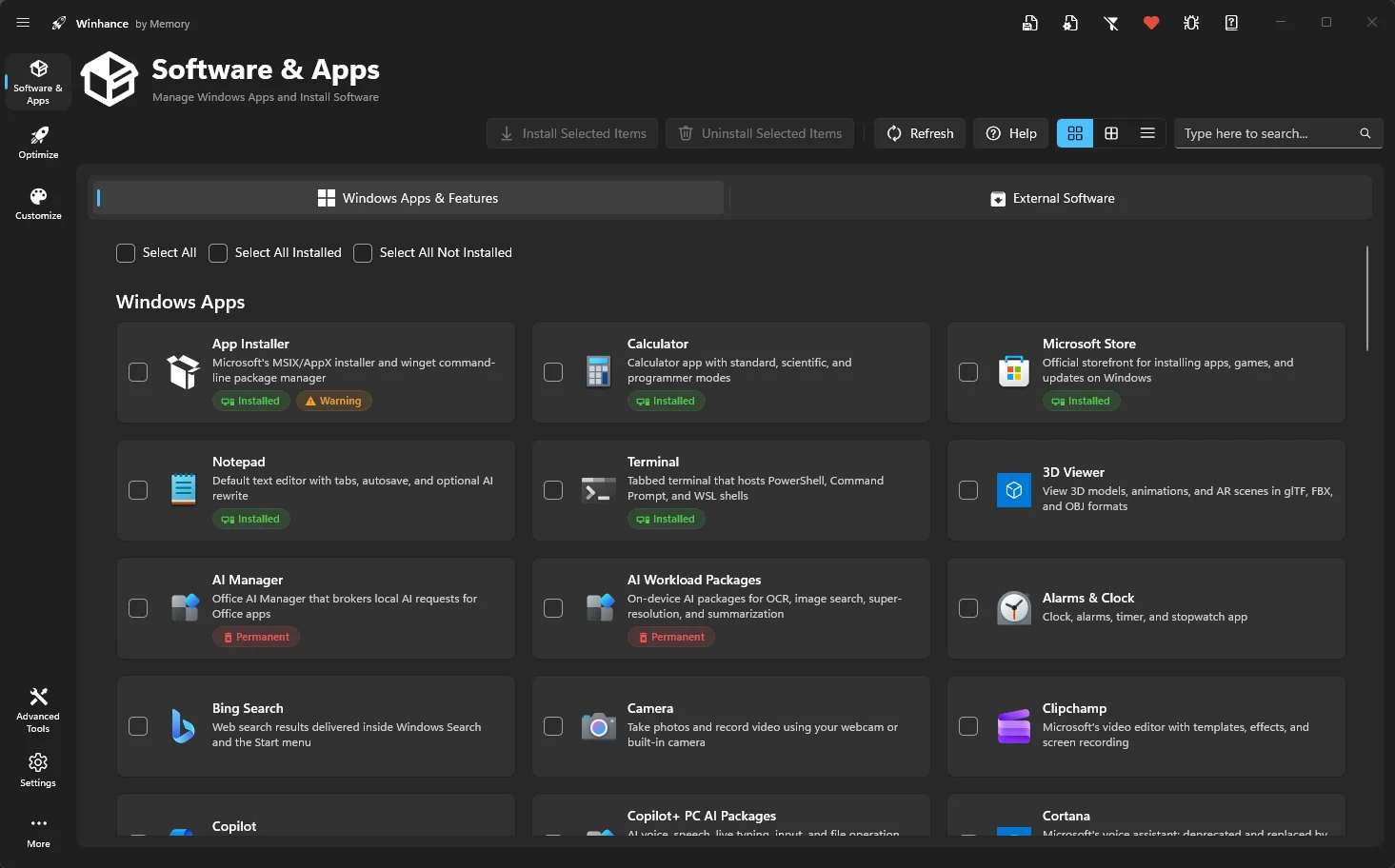
Read Guide →Winhance is a free, open-source Windows utility. It brings debloating, optimization and customization options for Windows 10 and Windows 11 into one interface, so you can remove components you do not use, adjust system behavior and reshape the desktop without editing settings by hand.
The source code is public, so anyone can read exactly what the app does before running it. Most changes can be switched back from the same screen, and each option states what it affects in Windows, so nothing is applied without being labelled.
Winhance runs on 64-bit Windows 10 and on Windows 11. Releases are updated as Windows itself changes, so options stay aligned with current builds and feature updates.
No. Every option is described in plain language, so you tick what you want and apply it - no registry editing or scripting required. If you prefer to see it first, the demo video walks through a full pass, and the quick start guide covers the same steps in writing.
The installer registers Winhance on the PC and adds a Start menu shortcut. The portable build skips installation entirely and runs from wherever you keep it, including a USB drive. Feature-wise the two are identical - see the installation guide for details.
In most cases yes - the same toggle that applied a change will put it back. A few Windows apps and features cannot be restored once removed, and those entries are flagged in the interface so you can decide before continuing.
The options are grouped by area: privacy and security, power plans, gaming and performance, Windows Update behavior, notifications and sound on the optimization side, plus theme, taskbar, Start menu and File Explorer on the customization side. Each group is documented in the optimizations reference and the customizations reference.
You pick the options you want, and Winhance applies the matching Windows settings for you. Because system-level changes are involved, the app asks for administrator rights when it starts. Your selections can be exported to a configuration file and reused on another machine.
Yes. Alongside running on an existing system, Winhance can generate an autounattend.xml from your selections and works with WIMUtil to build custom Windows installation media, so a new install starts closer to how you want it. The WIMUtil guide and the autounattend guide cover the process.